Microsoft Office for Windows Setup
|
How to Setup Microsoft Office 2019 Home & Business for Windows PC
|
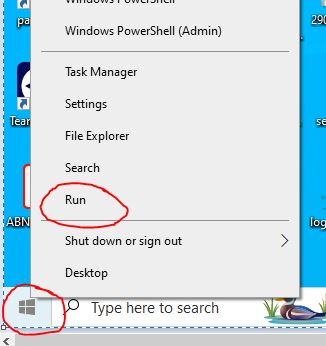
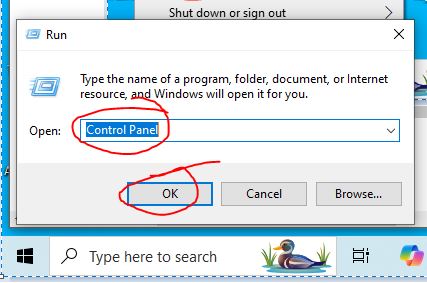
- Right-click on the Start Button/Menu, select "Run," type or enter "Control Panel" in the box, and then click OK.
- Alternatively, you can enter or type "Control Panel" in the Windows search box next to the start button, then select Control Panel.
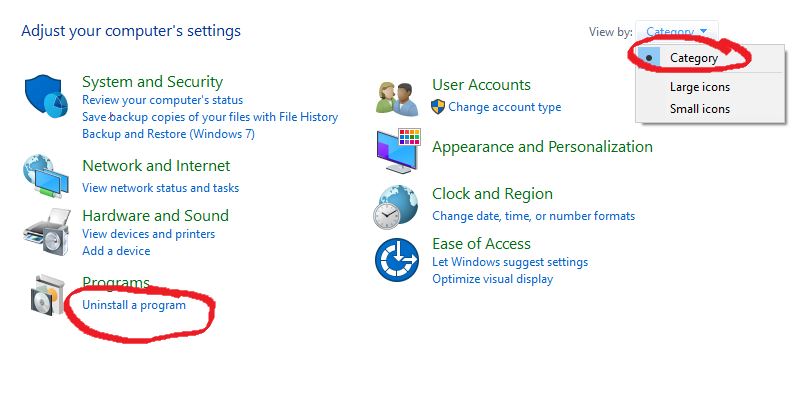
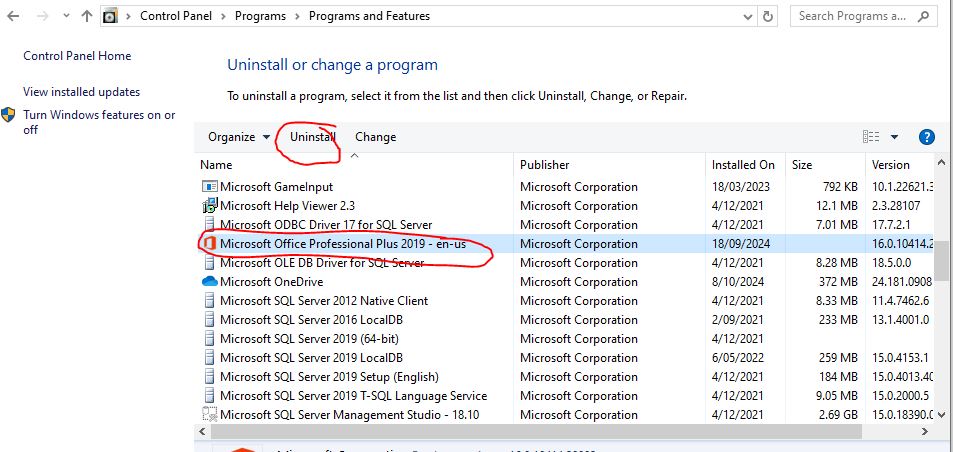
- Choose "Uninstall a Program," choose the Microsoft Office program from the list, click "Uninstall," and then follow the prompt to complete the uninstallation.
    - If you need more information please visit this below link
- https://support.office.com/en-us/article/uninstall-office-for-mac-eefa1199-5b58-43af-8a3d-b73dc1a8cae3
|
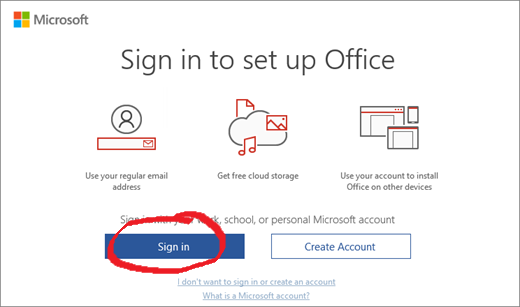
- Visit to https://setup.office.com and click "Sign In" if you already have a Microsoft account or "Create a New Account" if you do not have any Microsoft accounts.
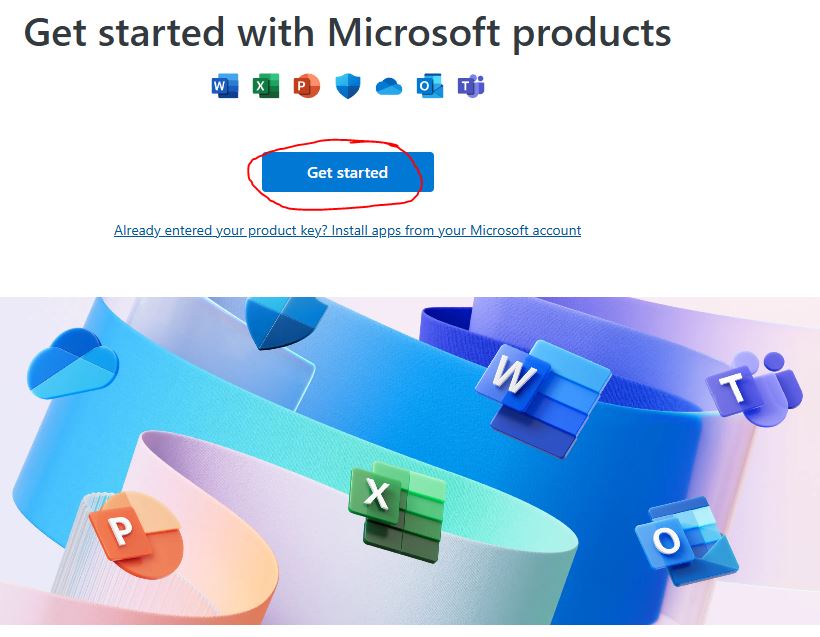 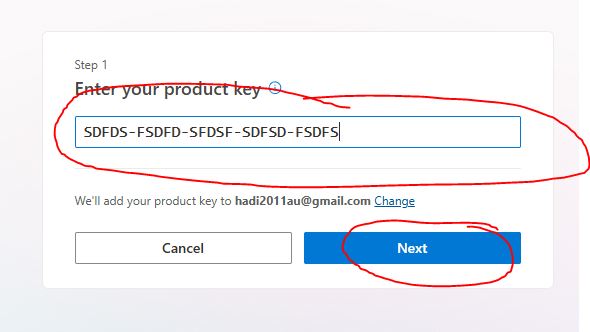 - Enter your 25-digit key, click next, and follow the prompt to complete the download and installation.
- Launch an office application like Microsoft Word or Excel, select the "File" option, then the "Account" option, and verify if the activation is complete. If not, please supply the Microsoft account credential you have just created.
|
- Visit: https://account.microsoft.com/services/
- Enter the same login that you used to download and activate the key for the first time
- Locate the “Install” link next to Office, Visio, or Project 2016/2019 / 2021 /2024 Pro Plus/home and business
- Download and install it again
- Open MS Word if asked, supply the same login
- Restart your PC / MAC
|