Microsoft Windows 8.1 Home License – Genuine Windows for Everyday Computing
Buy Microsoft Windows 8.1 Home License for a Fast, Familiar, and Reliable PC Experience
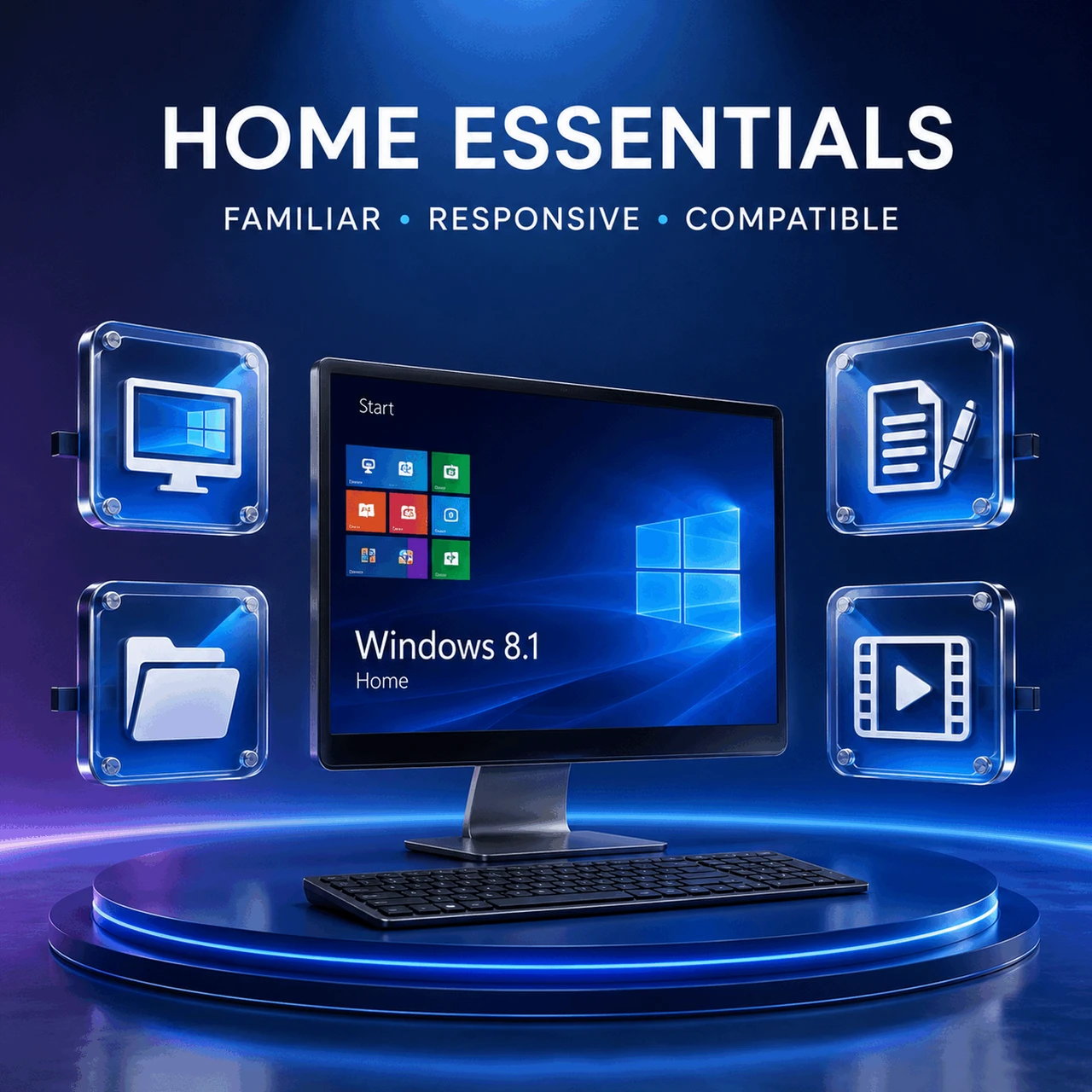
Give your compatible computer a fresh start with a genuine Microsoft Windows 8.1 Home license. Designed for home users, students, families, and everyday productivity, Microsoft Windows 8.1 Home combines fast performance, a user-friendly interface, and dependable stability in one trusted operating system.
Whether you're reinstalling Windows on a compatible PC, replacing an existing installation, or looking to buy Microsoft Windows 8.1 Home, a genuine license provides authentic activation and access to the complete Windows 8.1 Home experience for supported systems.
Why Choose Microsoft Windows 8.1 Home?
Microsoft Windows 8.1 Home delivers a balance of speed, simplicity, and compatibility, making it an excellent choice for everyday computing on supported hardware. It offers improved performance compared with earlier Windows releases while maintaining the familiar Windows desktop that millions of users know and trust.
Key Benefits
-
Genuine Microsoft Windows 8.1 Home license
-
Fast startup and shutdown performance
-
Smooth and responsive desktop experience
-
Improved Start screen with live tiles
-
Familiar Windows desktop environment
-
Enhanced File Explorer
-
Better multi-monitor support
-
Built-in Windows Defender
-
Windows Firewall protection
-
Support for Microsoft accounts and cloud synchronization
-
Wide compatibility with many Windows desktop applications
Perfect for Home Users
Microsoft Windows 8.1 Home is well suited for:
-
Home computers
-
Family PCs
-
Students
-
Online learning
-
Everyday productivity
-
Internet browsing
-
Email and communication
-
Office applications
-
Multimedia entertainment
-
Photo management
-
Personal finances
-
Home office use
Whether you're writing documents, browsing the web, streaming media, or managing personal files, Windows 8.1 Home provides a familiar and dependable environment.
Fast Performance That Keeps Up with You
Windows 8.1 Home was engineered to make everyday computing more responsive.
Performance Highlights
-
Faster boot times
-
Improved memory management
-
Better application responsiveness
-
Optimized power efficiency
-
Faster file transfers
-
Improved multitasking
-
Enhanced storage performance
-
Reliable operation on compatible hardware
These improvements help reduce waiting time and keep your workflow moving smoothly.
A Familiar Windows Experience
Microsoft Windows 8.1 Home combines a modern interface with the classic Windows desktop.
Enjoy Features Such As
-
Familiar desktop workspace
-
Improved Start experience
-
Live Tiles for quick updates
-
Enhanced Search functionality
-
Better window management
-
File Explorer improvements
-
Task Manager enhancements
-
Multi-monitor support
-
Integrated cloud features through Microsoft accounts
The result is an operating system that is easy to learn while offering efficient access to your files and applications.
Stay Productive Every Day
Whether you're working from home, completing school assignments, or organizing personal projects, Windows 8.1 Home provides the tools you need.
Common activities include:
-
Creating documents
-
Managing spreadsheets
-
Delivering presentations
-
Video conferencing
-
Web browsing
-
Email communication
-
Streaming music and movies
-
Managing digital photos
-
Organizing files and folders
Its responsive interface helps you accomplish everyday tasks with ease.
Entertainment at Your Fingertips
Microsoft Windows 8.1 Home also supports a rich entertainment experience on compatible devices.
Enjoy:
-
Music streaming
-
HD video playback
-
Digital photo libraries
-
Casual gaming
-
Media organization
-
Web-based entertainment
-
Support for many multimedia applications
Whether for work or leisure, Windows 8.1 Home offers a versatile computing platform.
Built-In Security Features
Windows 8.1 Home includes several integrated security technologies designed to help protect your PC.
Security Features
-
Windows Defender
-
Windows Firewall
-
Secure Boot support
-
SmartScreen Filter
-
User Account Control (UAC)
-
Automatic Update functionality (subject to Microsoft's support lifecycle)
These features provide a solid security foundation for supported environments.
Broad Software Compatibility
Microsoft Windows 8.1 Home supports a wide range of applications, including:
-
Microsoft Office
-
Web browsers
-
Educational software
-
Creative applications
-
Media players
-
Personal finance software
-
Photo editing tools
-
Home productivity applications
-
Communication software
Its compatibility with many Windows desktop programs makes it suitable for a variety of everyday tasks.
Optimized for Compatible Hardware
Windows 8.1 Home supports many hardware technologies available on compatible PCs, including:
-
32-bit and 64-bit processors
-
Solid-state drives (SSD)
-
USB 3.0 devices
-
High-definition displays
-
Touch-enabled devices
-
Wi-Fi networking
-
Bluetooth peripherals
-
Multi-monitor configurations
This allows users to make the most of compatible computer hardware.
Genuine Microsoft Windows 8.1 Home License Benefits
When you purchase a genuine Microsoft Windows 8.1 Home license, you receive benefits such as:
-
Authentic Microsoft product activation
-
Reliable installation
-
Stable operating system performance
-
Compatibility with supported software and hardware
-
Compliance with Microsoft licensing requirements
-
Reduced activation issues
Technical Specifications
Edition: Microsoft Windows 8.1 Home
License Type: Genuine Microsoft License
Architecture Support
-
32-bit (x86)
-
64-bit (x64)
Included Features
-
Windows Defender
-
Windows Firewall
-
SmartScreen Filter
-
Secure Boot support
-
Microsoft account integration
-
Live Tiles
-
File Explorer
-
Task Manager
-
Multi-monitor support
Minimum System Requirements
Typical minimum requirements include:
-
1 GHz or faster compatible processor
-
1 GB RAM (32-bit) or 2 GB RAM (64-bit)
-
Approximately 16 GB (32-bit) or 20 GB (64-bit) of available storage
-
DirectX 9 graphics device with WDDM driver
-
Minimum display resolution of 1024 × 768
Actual requirements may vary depending on hardware and installed software.
Important Support Information
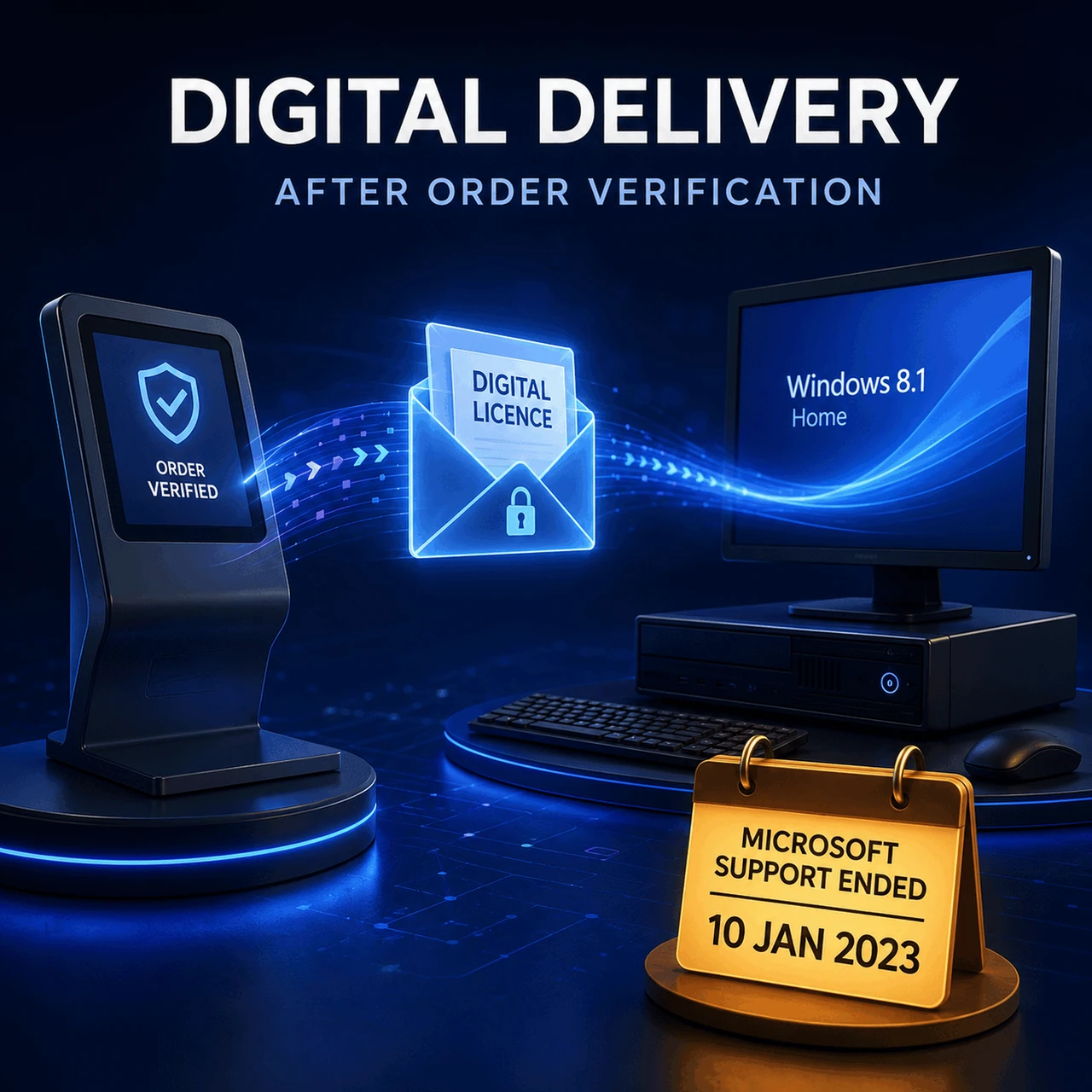
Microsoft ended mainstream support for Windows 8.1 in 2018 and extended support in January 2023. Windows 8.1 Home no longer receives regular security updates from Microsoft. It is generally best suited for maintaining legacy PCs, specialized software environments, virtual machines, or hardware that requires Windows 8.1 compatibility.
Frequently Asked Questions
Is Windows 8.1 Home still supported by Microsoft?
No. Extended support ended in January 2023, and Microsoft no longer provides regular security updates.
Can I upgrade to a newer version of Windows later?
Many compatible PCs can be upgraded to a newer Windows version if they meet the hardware requirements and the appropriate license is obtained.
Who should choose Windows 8.1 Home?
It is a practical choice for users maintaining existing Windows 8.1 systems, running software designed for Windows 8.1, or using compatible legacy hardware.
What's the difference between Windows 8.1 Home and Windows 8.1 Pro?
Windows 8.1 Home is designed for everyday personal use, while the Professional edition adds business-focused features such as BitLocker, Hyper-V, Remote Desktop Host, Domain Join, and Group Policy management.
Why Buy from a Trusted Software Retailer?
Purchasing a genuine Microsoft Windows 8.1 Home license from a reputable retailer helps ensure authentic licensing, straightforward activation, and dependable customer support. Choosing a trusted source gives you confidence that your operating system is properly licensed and ready for installation on a compatible PC.
Buy Microsoft Windows 8.1 Home License Today
If you need a dependable operating system for a compatible computer, Microsoft Windows 8.1 Home offers a familiar interface, responsive performance, and the essential features required for everyday computing. Buy Microsoft Windows 8.1 Home today and equip your PC with a genuine Microsoft license that delivers the reliability and ease of use millions of Windows users have trusted.
Microsoft Windows 8.1 Home (32/64 bit ) Full Edition
Why People Still Love Windows 8.1
1. Legacy Software Compatibility
-
Some older business applications or industrial tools were designed specifically for Windows 8/8.1 and may not function properly on Windows 10 or 11.
-
Certain custom-built enterprise software or hardware drivers (like POS systems, embedded devices, or medical machines) still require Windows 8.1’s environment.
⚙️ 2. Hardware Limitations
-
Older PCs that don’t meet Windows 10 or 11’s hardware requirements (e.g., TPM 2.0, Secure Boot, UEFI) can still run Windows 8.1 smoothly.
-
It’s a lightweight and fast OS for older CPUs and low-memory systems (2–4 GB RAM).
3. Stable and Familiar Interface
-
Many users prefer Windows 8.1’s Start screen and tile-based UI, which combines desktop and touch experiences.
-
For hybrid laptops and tablets, the touch-optimized interface still provides a clean, responsive workflow.
4. Offline or Isolated System Use
-
Windows 8.1 can still be secure when isolated from the internet and used in controlled or offline environments.
-
Ideal for lab setups, kiosks, manufacturing systems, or testing networks that don’t rely on cloud connectivity.
5. License Ownership and Cost
-
Businesses or individuals who already own Windows 8.1 licenses can legally continue using them without extra costs.
-
Upgrading large-scale systems to newer Windows versions can be expensive and time-consuming.
6. Ease of Customization
-
Windows 8.1 allows deep UI and system customization without the restrictions newer Windows versions impose.
-
Useful for developers or IT pros who prefer more control over updates and interface design.
7. Compatibility Testing and Development
-
Developers still use Windows 8.1 to test software backward compatibility or ensure products work across older Windows platforms.
-
Critical for organizations that serve clients with mixed Windows environments.
⚡ 8. Performance on Older Hardware
-
Known for fast boot times and efficient resource management compared to Windows 7 or early builds of Windows 10.
-
Runs well on HDD-based systems without SSD support.
⚠️ Important Note:
While Windows 8.1 can still serve niche or legacy needs, it no longer receives security updates or Microsoft support. Therefore, it’s not recommended for internet-connected environments without strong external security controls.
Microsoft Windows 8.1 Edition Comparison Table
| Feature Category | Windows 8.1 (Core) | Windows 8.1 Pro | Windows 8.1 Enterprise | Windows RT 8.1 |
|---|---|---|---|---|
| Intended Users | Home consumers | Power users, small business, professionals | Large enterprises, IT-managed environments | ARM-based tablets and hybrid devices |
| Architecture | x86 / x64 | x86 / x64 | x86 / x64 | ARM 32-bit only |
| Start Screen / Live Tiles | ✔️ | ✔️ | ✔️ | ✔️ |
| Desktop Environment | ✔️ | ✔️ | ✔️ | Limited desktop (Office pre-installed) |
| Touch + Modern UI (Metro Apps) | ✔️ | ✔️ | ✔️ | ✔️ |
| Windows Store Access | ✔️ | ✔️ | ✔️ | ✔️ (ARM apps only) |
| Windows Update | ✔️ | ✔️ | ✔️ | ✔️ |
| Microsoft Account Sync | ✔️ | ✔️ | ✔️ | ✔️ |
| Local Group Policy Editor | ❌ | ✔️ | ✔️ | ❌ |
| Domain Join (Active Directory) | ❌ | ✔️ | ✔️ | ❌ |
| Workgroup Support | ✔️ | ✔️ | ✔️ | ✔️ |
| Remote Desktop (Host) | ❌ (client only) | ✔️ (host + client) | ✔️ (host + client) | ❌ |
| Client Hyper-V Virtualization | ❌ | ✔️ | ✔️ | ❌ |
| BitLocker Drive Encryption | ❌ | ✔️ | ✔️ | ❌ |
| BitLocker To Go (USB Encryption) | ❌ | ✔️ | ✔️ | ❌ |
| EFS (Encrypting File System) | ❌ | ✔️ | ✔️ | ❌ |
| AppLocker | ❌ | ❌ | ✔️ | ❌ |
| DirectAccess (Seamless VPN) | ❌ | ❌ | ✔️ | ❌ |
| BranchCache | ❌ | ❌ | ✔️ | ❌ |
| Windows To Go (Bootable USB) | ❌ | ❌ | ✔️ | ❌ |
| VHD Boot (from Virtual Hard Disk) | ❌ | ✔️ | ✔️ | ❌ |
| Assigned Access (Kiosk Mode) | ❌ | ✔️ | ✔️ | ✔️ (limited) |
| Group Policy Management | ❌ | ✔️ | ✔️ | ❌ |
| Offline Files / Folder Redirection | ❌ | ✔️ | ✔️ | ❌ |
| System Image Backup | ✔️ | ✔️ | ✔️ | ❌ |
| Trusted Boot (Secure Boot) | ✔️ | ✔️ | ✔️ | ✔️ |
| Windows Defender + Firewall | ✔️ | ✔️ | ✔️ | ✔️ |
| SmartScreen Filter | ✔️ | ✔️ | ✔️ | ✔️ |
| Media Center Add-on | ❌ | Optional Add-on (paid) | ❌ | ❌ |
| Windows Update for Business | ❌ | Limited (manual/group policy) | ✔️ (via WSUS/MDT) | ❌ |
| Licensing Type | Retail / OEM | Retail / Volume / OEM | Volume Licensing (Software Assurance) | OEM only |
| Maximum Physical Memory (RAM) | 128 GB (x64) | 512 GB (x64) | 512 GB (x64) | 4 GB |
| Maximum CPUs Supported | 1 | 2 | 2 | 1 (ARM SoC) |
| Storage Spaces / ReFS Support | ✔️ | ✔️ | ✔️ | ❌ |
| RemoteFX / RDP 8.1 | ❌ (client only) | ✔️ | ✔️ | ❌ |
| MDM & Device Management (Intune) | ❌ | Partial | ✔️ | Limited |
| Volume Activation (KMS/MAK) | ❌ | ✔️ | ✔️ | ❌ |
| Enterprise Sideloading (Custom Apps) | ❌ | ✔️ (with key) | ✔️ (built-in) | ✔️ (with key) |
| Windows Store Restrictions | Standard | Configurable via Group Policy | Full control via enterprise policies | Limited to ARM apps |
| Built-in Office | ❌ | ❌ | ❌ | ✔️ (Office RT 2013 preinstalled) |
Summary of Key Differences
Windows 8.1 (Core)
-
Basic consumer edition.
-
Lacks business, security, and domain features.
-
Ideal for personal or home users on standalone PCs or tablets.
Windows 8.1 Pro
-
Adds professional-grade features: BitLocker, Hyper-V, Remote Desktop host, and Domain Join.
-
Suited for small businesses, power users, and IT pros.
Windows 8.1 Enterprise
-
Superset of Pro with advanced enterprise management tools (AppLocker, DirectAccess, BranchCache, Windows To Go).
-
Available only through Volume Licensing for corporations.
Windows RT 8.1
-
ARM-based OS (non-x86).
-
Can’t install desktop programs (except Office RT).
-
Designed for long battery life and tablet performance — not compatible with regular Windows apps.
⚙️ Licensing and Deployment Insights
| Area | Core | Pro | Enterprise |
|---|---|---|---|
| Licensing Channel | Retail/OEM | Retail, OEM, Volume | Volume Only |
| Upgrade Path | From Windows 7 Home | From Windows 7 Pro/Ultimate | From Pro + SA |
| Volume Activation | ❌ | ✔️ | ✔️ |
| Software Assurance Features | ❌ | Optional | ✔️ (included) |
Best Use Cases
-
Home Users: Windows 8.1 (Core)
-
IT Professionals / Small Businesses: Windows 8.1 Pro
-
Enterprises / Managed Networks: Windows 8.1 Enterprise
-
ARM Tablet Users: Windows RT 8.1
Microsoft Windows 8.1 is an operating system developed by Microsoft and released on October 17, 2013. It was designed as a major update to Windows 8, addressing many of the criticisms and usability issues that plagued the original Windows 8 release. Windows 8.1 introduced improvements in both functionality and user experience, making it more user-friendly and versatile for various types of users. Here’s a comprehensive overview:
1. Development and Release
- Release Date: October 17, 2013
- Purpose: Windows 8.1 was developed as a refinement to Windows 8, intended to improve the usability of the Start Screen, enhance integration with cloud services, and address complaints regarding the lack of a Start button, which had been removed in Windows 8.
- End of Support: Microsoft officially ended support for Windows 8.1 on January 10, 2023, which means no further security updates, patches, or technical support.
2. User Interface and Design Changes
- Start Button Return: Windows 8.1 brought back the Start button, a familiar feature that had been removed in Windows 8. Clicking the Start button in Windows 8.1 would bring users to the Start Screen instead of the Start Menu, although the button's presence helped with navigation.
- Start Screen Customization: Windows 8.1 added more options for customizing the Start Screen. Users could change tile sizes, set different colors, and even use their desktop background as the Start Screen background.
- Boot to Desktop: Windows 8.1 allowed users to bypass the Start Screen and boot directly to the desktop, a popular feature for users who preferred the traditional desktop interface.
- Enhanced Multitasking and Snap View: Windows 8.1 improved on the Snap View feature, allowing users to run multiple apps side-by-side and resize them more flexibly. Depending on screen size, users could open up to four apps at once.
- Hot Corners and Charms Bar: Windows 8.1 retained the Charms Bar from Windows 8, accessible by swiping from the right or by moving the mouse to the top right corner. This feature provided quick access to functions like Search, Share, Start, Devices, and Settings.
3. New and Updated Apps
- Integrated Bing Search: Windows 8.1 included Bing as a universal search tool, providing web and local search results through the same search bar.
- OneDrive Integration: OneDrive (formerly SkyDrive) was deeply integrated, allowing users to save files directly to the cloud and sync data across devices.
- New Built-in Apps: Windows 8.1 came with new built-in apps like Health & Fitness, Food & Drink, and an updated Photos app. Many of these were optimized for touchscreen devices.
- Windows Store Redesign: The Windows Store received a redesign to improve app discovery, organization, and overall user experience.
4. Improved System Performance and Security
- Enhanced Security: Windows 8.1 introduced enhanced security features such as improved malware resistance, support for biometrics, and integrated Windows Defender. It also included device encryption by default on some devices.
- Faster Boot Times: Windows 8.1 maintained and improved the fast boot times introduced in Windows 8. This was achieved through better optimization of the startup process.
- Internet Explorer 11: Windows 8.1 shipped with Internet Explorer 11, which included new touch-friendly browsing features and performance enhancements.
5. Settings and PC Customization
- Unified Settings: Windows 8.1 improved the settings interface by adding more options to the modern (Metro) PC Settings, reducing the need to go to the Control Panel for basic tasks.
- Mouse and Touchpad Gestures: Windows 8.1 included improved support for mouse and touchpad gestures, making it easier to use on both traditional laptops/desktops and touchscreen devices.
6. Compatibility and Hardware Requirements
- System Requirements:
- Processor: 1 GHz or faster
- RAM: 1 GB (32-bit) or 2 GB (64-bit)
- Hard Disk Space: 16 GB (32-bit) or 20 GB (64-bit)
- Graphics Card: DirectX 9 or later with WDDM 1.0 driver
- Compatibility: Windows 8.1 was designed to be compatible with the same hardware that ran Windows 8, making it a viable upgrade for most Windows 8 users. It supported both legacy desktop applications and new Windows Store apps, which were optimized for touch.
7. Microsoft Account Integration
- Windows 8.1 emphasized Microsoft account integration, allowing users to sign in with their Microsoft account and sync their settings, files, and apps across multiple devices.
- This integration extended to OneDrive, providing seamless access to files across devices.
8. Reception and Legacy
- Positive Reception: Windows 8.1 received a warmer reception than Windows 8, especially for reintroducing the Start button and improving the desktop experience. It addressed several user concerns, although the overall dual-interface design (Desktop and Start Screen) remained polarizing.
- Transition to Windows 10: Windows 8.1 was Microsoft's final step before Windows 10, which fully reintroduced the Start Menu and addressed many of the interface issues in Windows 8.
9. Windows 8.1 Editions
- Windows 8.1: Standard edition for general users.
- Windows 8.1 Pro: Aimed at professionals and business users, with features such as BitLocker, Remote Desktop, and the ability to join a domain.
- Windows 8.1 Enterprise: Targeted at large organizations, including advanced security features, app management, and IT management tools.
- Windows 8.1 RT: A version designed specifically for ARM-based tablets, such as Microsoft Surface RT. It was limited to Windows Store apps and did not support legacy desktop applications, except for Office RT.
Summary
Windows 8.1 marked an important transitional release for Microsoft. It was both an improvement on Windows 8 and a bridge to the more popular Windows 10, which took the best elements of Windows 8.1 while reintroducing traditional features from Windows 7, such as the Start Menu, to create a more cohesive user experience.