

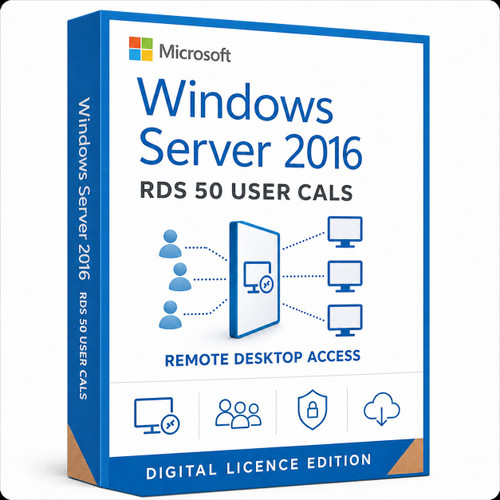
Remote Desktop Services · 50 named users
License 50 named users for Windows Server 2016 RDS access
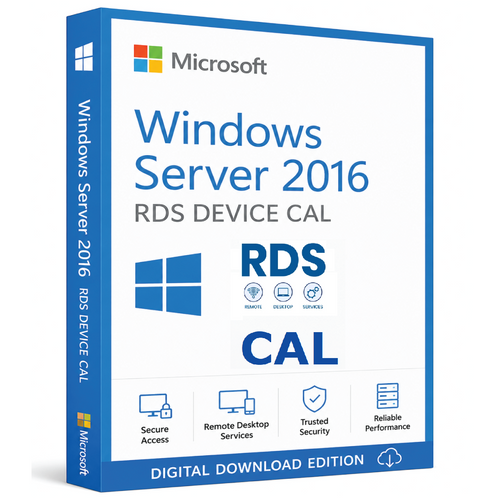
A Windows Server 2016 RDS User CAL is an additional access licence for one named user connecting to a Windows Server Remote Desktop Services deployment. This 50-user pack is intended for organisations whose licensed users connect from multiple supported devices.
- 50 named users
- RDS access entitlement
- Per User mode
- Installed on licence server
- Not a Server CAL
Purchase boundaries
Quick facts for the 50 User CAL pack
Pre-purchase check
Confirm four points before ordering
Session Host version
The deployment uses Windows Server 2016 or an eligible earlier Session Host—not a newer release.
Domain environment
Per User RDS licensing is intended for a domain deployment. Microsoft requires Per Device mode for a workgroup.
Named-user count
The pack covers 50 named people, not a pool of 50 concurrent sessions.
Licence layers
The server OS and base Windows Server CALs are already licensed or will be purchased separately.
Licence stack
RDS sits on top of Windows Server licensing
- 1
Windows Server licence
License the physical server or virtualisation host for Windows Server Standard or Datacenter.
- 2
Base Windows Server CAL
License each accessing user or device with the appropriate Windows Server CAL.
- 3
RDS User CAL
Add one RDS User CAL for every named person who uses Remote Desktop Services functionality.
Access model
RDS User CAL or RDS Device CAL?
RDS User CAL
License one named person
- One CAL per named user
- User may connect from multiple supported devices
- Usually suits mobile and hybrid staff
- Requires a domain environment for Per User mode
RDS Device CAL
License one specific endpoint
- One CAL per licensed device
- Several people may share the device
- Usually suits shifts, kiosks and labs
- Use Per Device mode for a workgroup
Deployment path
Install the RDS CAL pack through Remote Desktop Licensing Manager
- 1
Prepare the licence server
Install the Remote Desktop Licensing role and activate the RDS licence server according to Microsoft's instructions.
- 2
Install the CAL pack
Open Remote Desktop Licensing Manager, choose Install Licenses and enter the fulfilment information supplied for the confirmed licence channel.
- 3
Configure the Session Host
Point the Session Host to the correct licence server, select Per User mode and verify the deployment.
The exact installation fields depend on the licence programme/channel supplied. The product page must disclose that channel before publication.
Digital fulfilment
What your delivery email includes
Product licence key
Your email includes the product licence key for the 50-user RDS CAL pack.
Download and setup
Receive a download link and clear installation instructions for the supplied licence.
Typically 1–10 minutes
Orders are normally delivered by email within 1–10 minutes after successful payment and any required order checks.
Installation support
Support is available through remote assistance, live chat, email and phone for download, installation and activation.
Activation guarantee: If activation cannot be completed after troubleshooting, we will provide a replacement key first. If the replacement also cannot be activated, a 100% refund will be issued.
Version planning
Do not buy 2016 CALs for a newer Session Host
A Windows Server 2016 RDS CAL does not license access to a Windows Server 2019, 2022 or 2025 Session Host. Microsoft extended support for Windows Server 2016 ends in January 2027, so confirm the upgrade roadmap before purchasing a 50-user pack.
Buyer questions
Windows Server 2016 RDS User CAL FAQs
Does this include Windows Server?
No. It supplies an RDS access entitlement. The server operating system must be licensed separately.
Do I also need ordinary Windows Server CALs?
Yes. Microsoft treats the Windows Server CAL as the base access licence and the RDS CAL as an additional licence for RDS functionality.
Does this pack license 50 concurrent sessions?
No. It licenses 50 named users. The licence count is not a concurrent-session pool.
Can each licensed user connect from several devices?
Yes, subject to Microsoft's terms and a correctly configured Per User RDS deployment.
Can I use this with Server 2019 or newer?
No. A 2016 RDS CAL cannot license a newer Session Host. Choose an RDS CAL version that is the same as or newer than the Session Host version.
Can I use RDS Per User mode in a workgroup?
No. Microsoft requires Per Device RDS licensing for workgroup deployments.
Ready to proceed?
Confirm version, domain and base CAL coverage
Order only when the 50 named users, Windows Server 2016 Session Host, domain configuration and base Windows Server CALs are confirmed.
Official Microsoft references
- Microsoft base and additive CAL guidance
- RDS CAL model and version compatibility
- Configure RDS Session Host licensing
- Install RDS CALs
- Windows Server 2016 lifecycle
Microsoft Product Terms and licensing documentation control if they conflict with this explanatory summary.